
Video Creative
If you want to upload your own video, you can do so by clicking Upload your Video Creative.
As with any other type of creative, you add your video directly from the Wizard or under Campaign details > Creatives.
-
Select + New Creative
-
Select Upload your Video Creative

-
Select Next to select the size of the placement where your video will be shown.
-
Select Next to move forward..
-
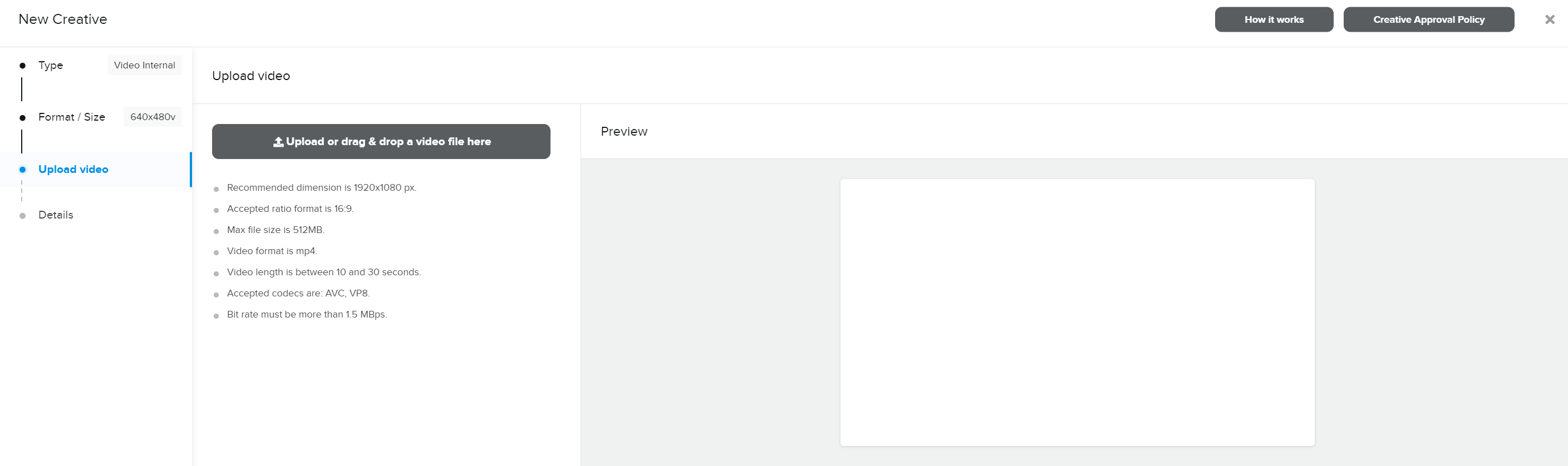
Select Upload to select a video from your computer or or drag & drop a video file directly to the marked area:

While uploading you will see a progress message in the Preview section.
-
If the upload is successful you will see your video in the Preview section.
-
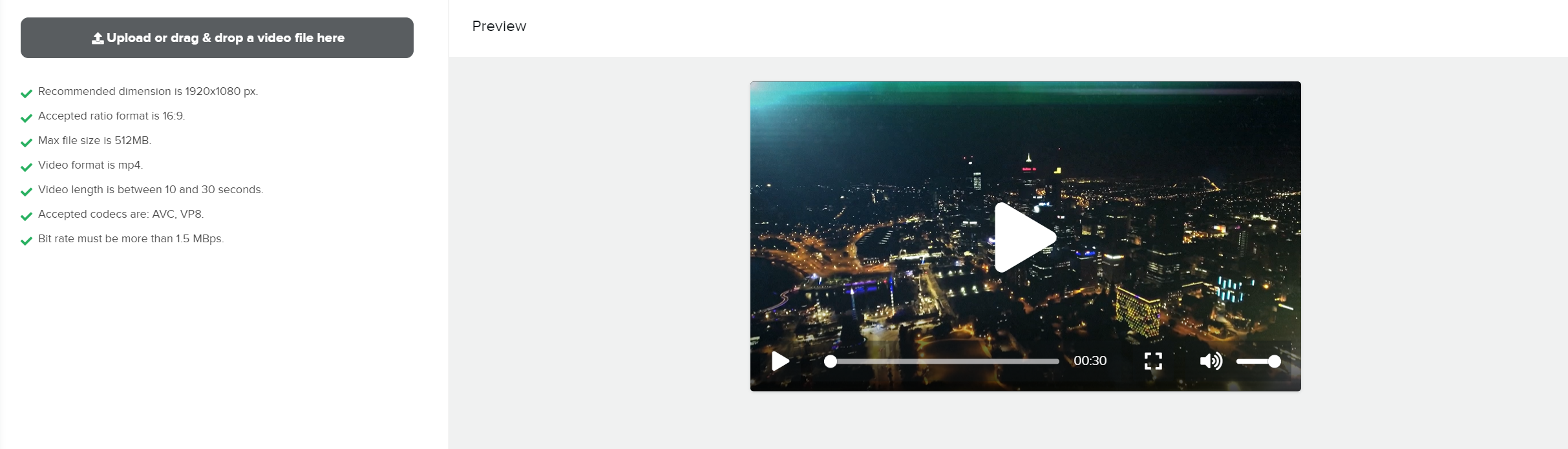
Start your video and make sure everything is correct.
Then select Next. -
Details is the last screen in the creative wizard:

Here you set:
- Creative Name (only you will see this)
- Destination URL (when people click your ad, this is where they will be re-directed.
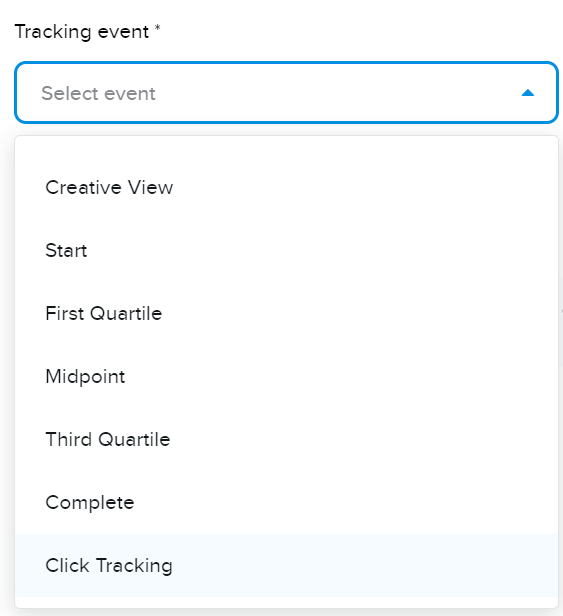
- Tracking Event(s) (optional)
You can set as many tracking events as you like.
For each event you want to track, you set the Third-party tracking URL. -
When you are done, select Complete.
-
Your new video creative is shown in the list.

Video Creative statuses
New video creatives are shown with status DRAFT .

When you Checkout and pay, the status of your creatives changes from Draft to Under Review and a notification is sent to the publisher to review and approve your ad.

When the publisher starts the approval process, you will see your video status change from Under Review to Processing.

After your creative has been reviewed you will get a notification that your video is either Approved or Rejected. If rejected, you will see the reason for rejection. If approved, your video is shown to your audiences.
During the time your video is shown, the status is Active and you can see statistics updated daily.

Video creative error messages
In case your video file or VAST Tag does not meet the requirements, you will see a message describing the problem.
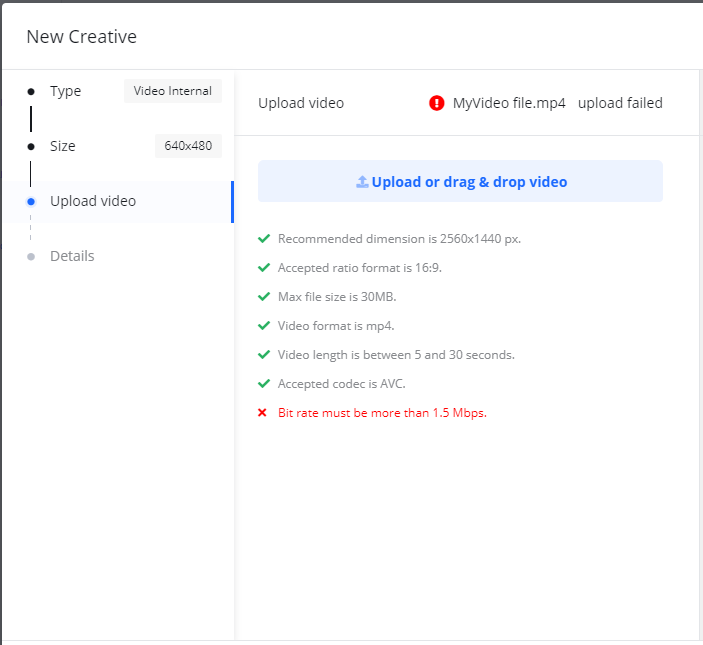
When this happens, you need to upload a different video file.